
3. Structure your content
Navigating content, particularly on websites with many different content types like menus, ads, sidebars, and more, can be complex and time-consuming for users with screen readers.
Screen readers may need to read every single item on the page to find what they’re looking for if your page isn’t structured correctly.
For consideration
Consider how tedious it would be for you if, every time you move from one page of the site to another, you had to reread the menu in its entirety before you could get to the content.
That’s just one painful annoyance if your content is unstructured.
While structuring your entire site using Landmark Roles isn’t achievable without developer support. The development team will establish the structure so that any new content you add to the site continues to expand.
Content structure begins with heading tags
Using heading tags helps structure your content so users can conveniently jump to different content sections. Many visitors who use screen readers rely on headings to navigate and understand the structure of your website.
Your current site has likely implemented properly formatted paragraph and heading tags. Most (if not all) website text editors will use paragraph tags <p> to denote new sections of content by default.
Your content editing tool should also have pre-defined heading tags.
Suggested approach
These tags can define the title of an article, a subtitle, and so on. There are six heading levels in HTML, defined by the tags <h1> to <h6>
A general rule of thumb is that if you’re using the Bold button or <strong> tag to define a subtitle in your content, you should look at your heading options.
Unlike less used tags like <abbr>, heading tags should be easily accessible via your text editor, so you don’t have to manually add these tags through the code view of your editor.
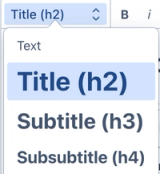
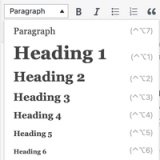
For example, in your text editor, you may see something like the dropdown pictured here, where all the structured text format options available are just a click away.
For consideration
There is the possibility that the website does not have these tags assigned, and they won’t be formatted to display on the website. Any tags to be used should be confirmed in consultation with the design and development team.
Heading 1 should only appear once
A heading 1 <h1> tag should only be used once per page and should define the overall topic of the page currently being visited. It should not be used for the company logo or a tagline that stays the same between each page on the website.
Putting it into action
- Use one h1 tag per page. It acts as a top-level, unique title for the page
- Use headings in sequential order (h1, h2, h3, h4)
- Don’t skip heading levels (i.e., jumping from h2 to h4)